HolyC Graphics Guide
This guide shows how to write graphical programs in HolyC on a normal desktop OS: draw pixels, open a window, move sprites around, and render 3D. It uses hcc, a standalone HolyC compiler by James Barford, plus SDL2 and OpenGL. You don't need TempleOS or a VM.
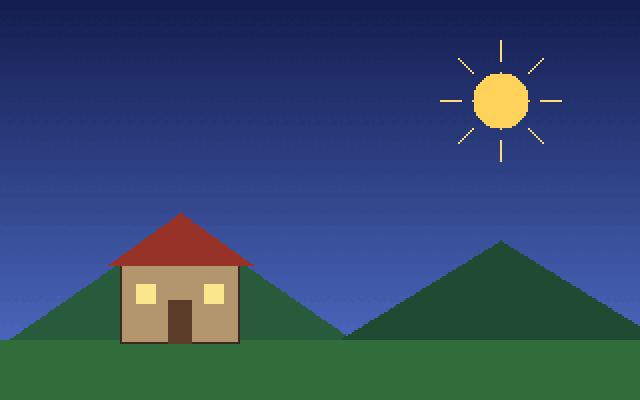
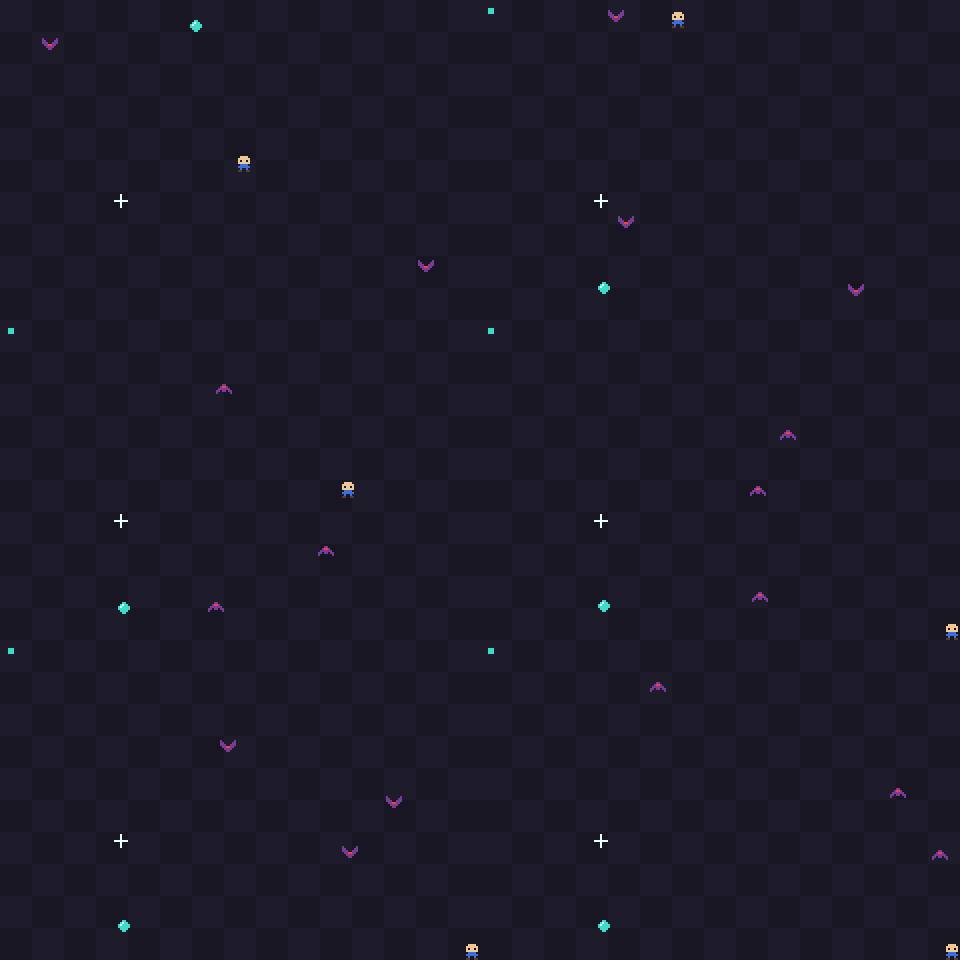
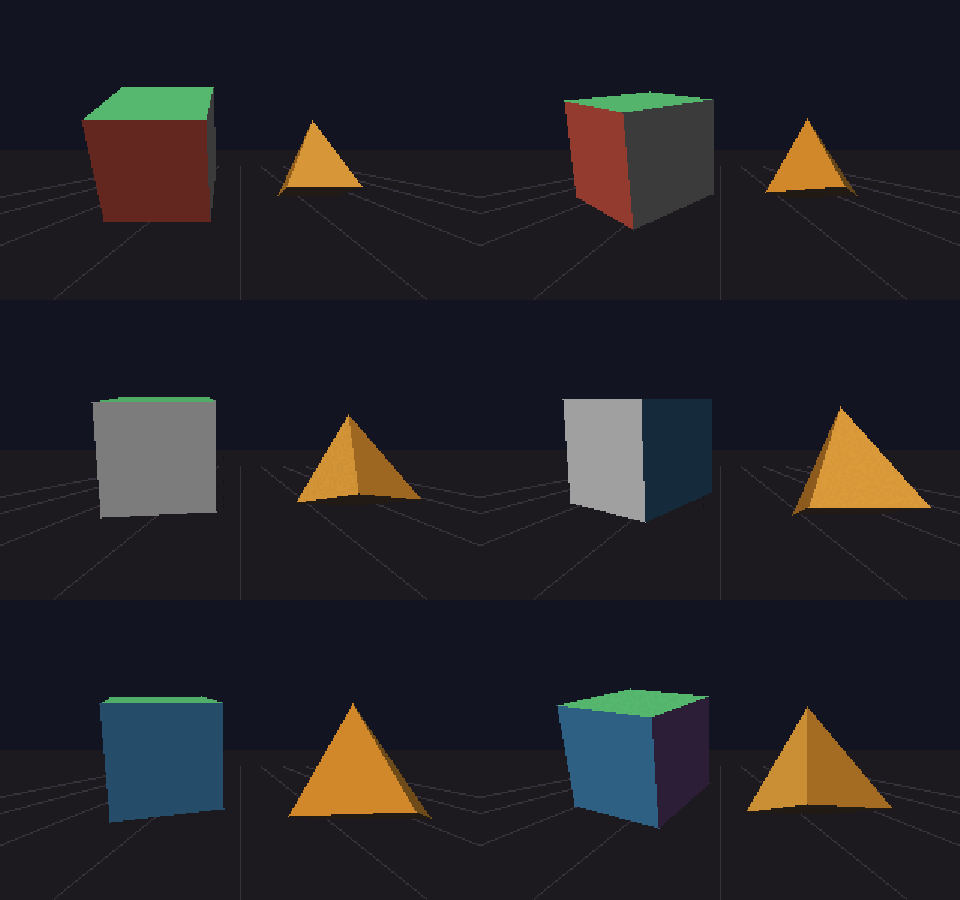

Every image on this site comes from the example programs in examples/, built with hcc 0.0.15-beta. The animations are frames from each example's own update and drawing code with scripted input.
What this is, and what it isn't
It is a guide and a starter kit: thirteen small programs that compile and run, a few hundred lines of reusable HolyC (a software framebuffer, a bitmap font, SDL2 and OpenGL declarations), and docs explaining how they fit together.
It isn't an engine. hcc is a compiler. It gives you the HolyC language and a small runtime library (strings, memory, files, hash tables), but no windowing, input, audio or graphics. For those you call native C libraries from HolyC, which is most of what this guide teaches.
TempleOS graphics don't come with you
TempleOS has its own graphics API (GrPlot, GrLine, DCFill, sprites in $SP$ doc entries, and so on). That API is part of the TempleOS kernel, not the language, and hcc doesn't provide it. Code written against it won't compile here. Graphics and rendering explains what replaces it.
How the pieces fit
flowchart LR
hc["your .HC files"] --> hcc
hcc -->|assembly| cc["system cc<br/>(assemble + link)"]
cc --> bin["native executable"]
bin -->|"extern "c" calls"| sdl[(libSDL2)]
bin -->|"extern "c" calls"| gl[(libGL / OpenGL.framework)]hcc turns HolyC into x86_64 or AArch64 assembly, then calls the system C compiler to assemble and link it. Because the result is an ordinary native binary, it can call any C library: you declare the functions with extern "c" and name the library with #link. hcc can also JIT-compile and run a file in-process with hcc -jit, which is handy while iterating.
What the guide covers
| Topic | Pages | Examples |
|---|---|---|
| Drawing pixels yourself | Graphics and rendering, Sprites and 2D | draw-basic, font-text, sprite-demo, tilemap, image-load |
| Windows, input, sound | Graphics and rendering, Sound | sprite-demo, gamepad, audio, sdl-demo |
| 3D | 3D overview | simple-3d (CPU), opengl-demo and gl-texture (GPU) |
| Calling C libraries | Runtime bindings | every SDL2 and OpenGL example |
| Larger programs | Project layout, Memory arenas, Profiling | |
| Coming from TempleOS | Porting from TempleOS | templeos-bounce |
Example programs describes all thirteen, with the command to run each one.
Status and platforms
Everything is tested against hcc 0.0.15-beta (commit 06ca611). On every change, CI builds that hcc from source and runs scripts/check.sh. Every example that draws must produce byte-identical frames to recorded SHA-256 sums in its --ppm mode (the OpenGL ones on llvmpipe only), beep must play its recorded samples, and the window examples must open and keep running.
| Platform | Status |
|---|---|
| Linux x86_64 | Works. CI runs all thirteen examples, the OpenGL ones on Mesa's software renderer. |
| macOS (Apple Silicon and Intel) | Works. CI builds all thirteen and runs all but the two OpenGL ones. |
| Windows | Only through WSL2, which isn't tested by CI. hcc has no Windows backend, so it can't produce .exe files. Windows 11 shows WSL2 windows through WSLg. |
The main limits, besides hcc being beta: CI doesn't run OpenGL on macOS, live input and windows are only checked for starting without a crash, and the software 3D renderer has no depth buffer or clipping. The roadmap lists what's being worked on next.
Where to start
- Installation: install the dependencies and hcc.
- Quick start: compile and run your first program, then open a window.
- Graphics and rendering: the frame loop, the software canvas, and when to switch to OpenGL.
- Compiler quirks: read this before writing much code. hcc is beta software, and a few bugs will bite you.